The Original Timekeeper
"The sun is new each day."
On my iPhone, I have a simple Shortcuts automation set to run twice a day, quietly creating a countdown to sunrise each morning and sunset each evening. There are no alarms or notifications.
As the moment gets closer, the countdown simply appears on my Lock Screen.
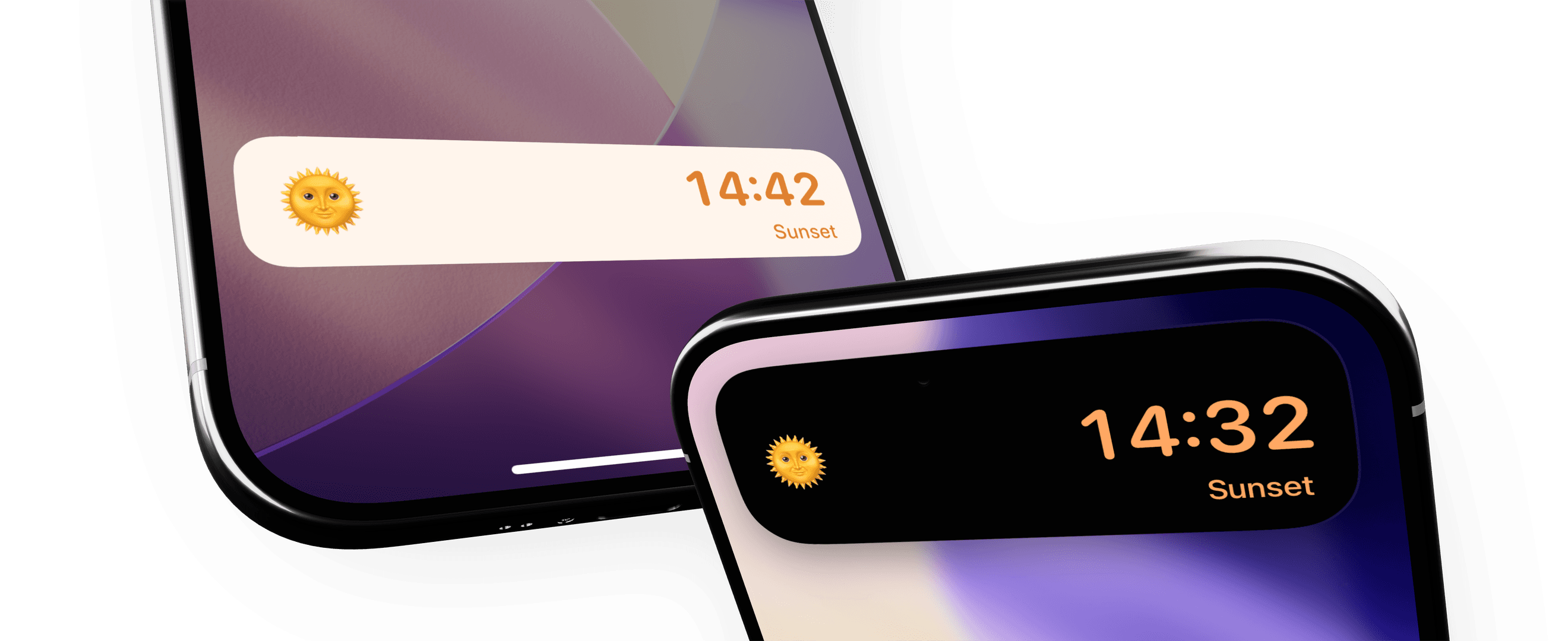
I set this up as a way to regularly test Timely's Shortcuts integration, but also because I really like having it there. Sunrise and sunset shift a little every day, and whether you're planning around the light or just want to keep an eye on it, I find it's really nice to have.
Download the Sunrise Sunset Countdown shortcut.
Setting it up on iOS 26
For iOS 26, setup is straightforward:
- Go to the Automation tab in Shortcuts.
- Create a new “Time of Day” automation.
- Select either Sunrise or Sunset as the “When” event, then choose how many minutes before that time you want it to run. I use 15 minutes.
- Switch from “Run After Confirmation” to Run Immediately.
- On the next screen, select the Sunrise Sunset Countdown shortcut.
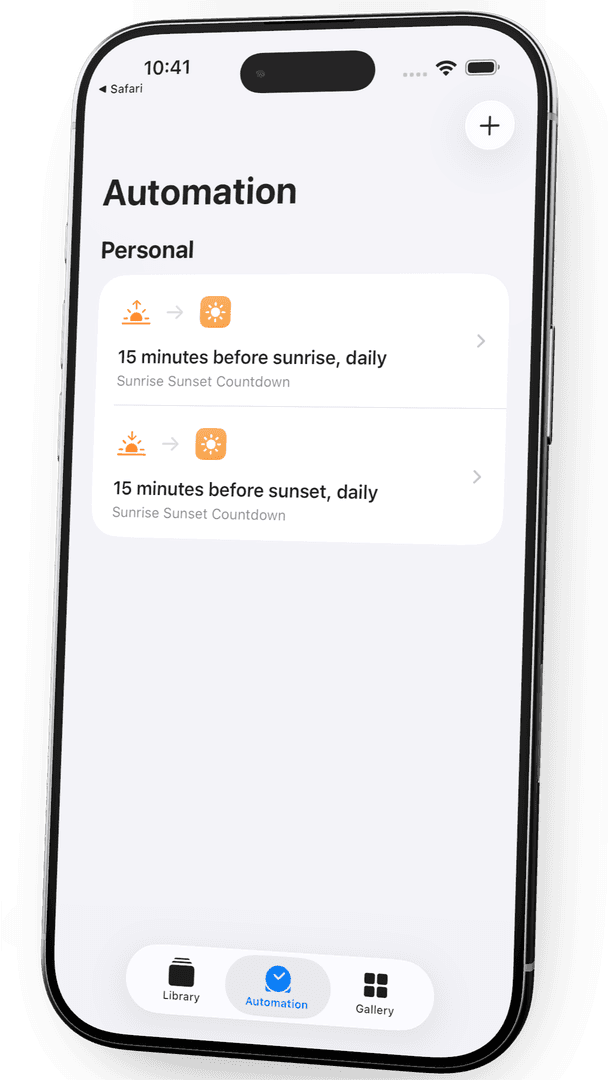
For both sunrise and sunset, you'll need to set up two automations, one for each time.
The shortcut works for both, though. It's configured to establish which is coming up next, sunrise or sunset, and start the right countdown at the right time, with the right title.
And that's it. A simple Shortcuts automation that keeps sunrise and sunset just a glance away on your iPhone Lock Screen, every day.